Python Virtual Environments: Setting the Stage for PyGame
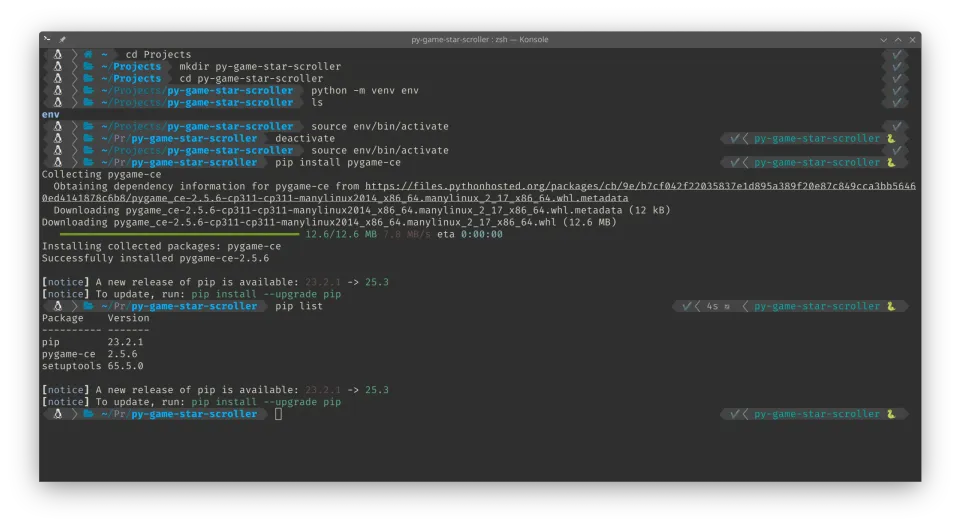
I am starting an AI Expert Training curriculum, with courses starting in January 2026. A core part of this training, especially the data science and API courses, relies heavily on the Python ecosystem and managing project dependencies.
To build the necessary muscle memory and fluency, I'm starting a series of practical coding exercises. My first project is a PyGame starscroller, a visual effect inspired by demoscene. Before writing any code, the first, most critical step is learning to use a Python Virtual Environment (venv) to ensure my project remains clean and reproducible.
Project Focus: Isolating Dependencies with venv
Today's focus was mastering the use of Python Virtual Environments. The idea is to be able to contain my projects without installing dependencies system-wide. The key benefit is that I can lock in the specific versions of packages used in a project, preventing them from clashing with the rest of the system or other projects.
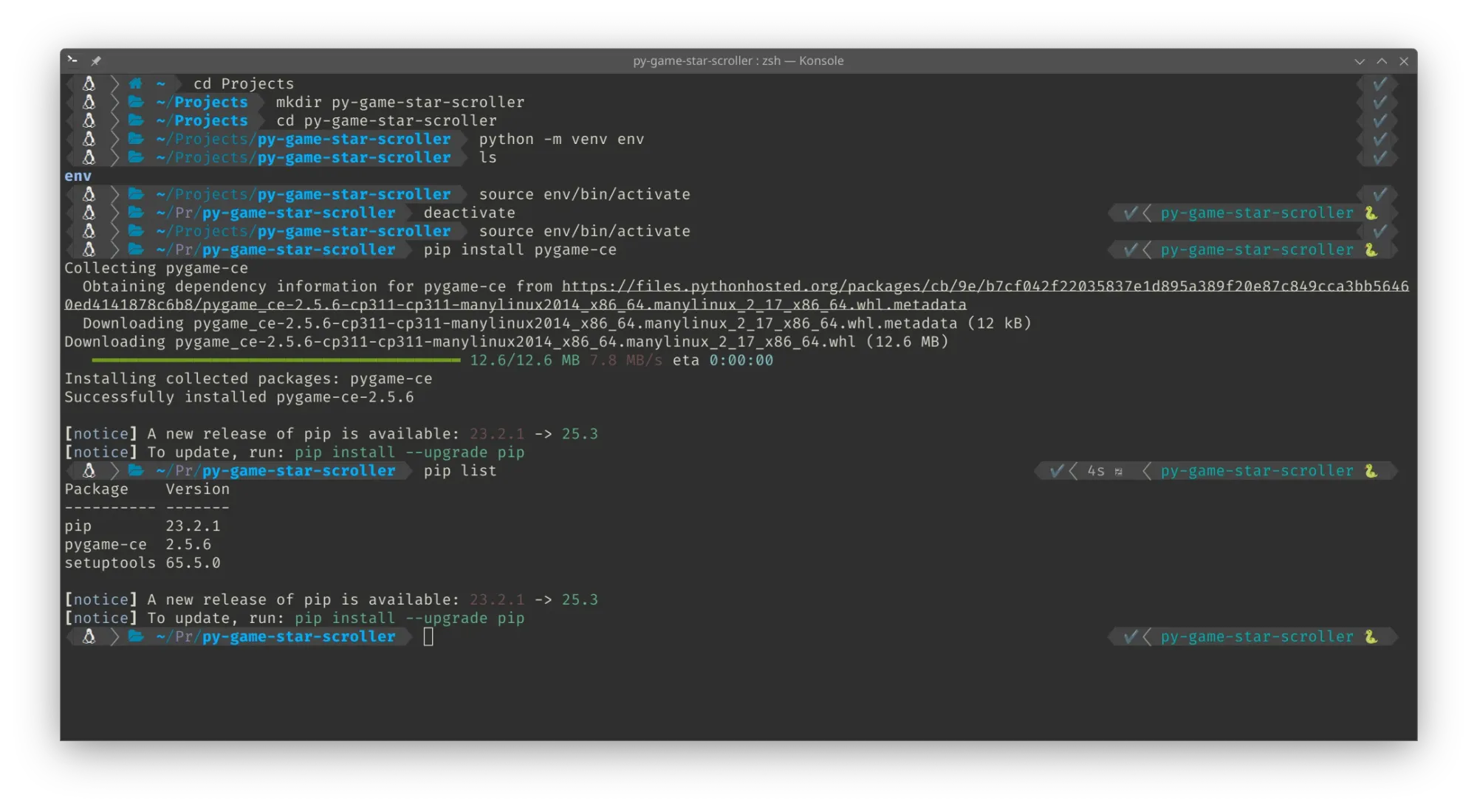
Step-by-step instructions for Linux (using python -m venv):
- Open Terminal: Push Ctrl + Alt + T to open the command-line interface.
- Create Project Folder: Navigate to where you want your project to live and create a new folder for it.
- Create the Environment: Type in
python -m venv envNote:
envis the name of the environment folder and can be anything you choose (e.g.,scroller_env). - Activate the Environment: Type in
source ./env/bin/activateCheck: You will see the prompt change (often showing
(env)) to signal the environment is successfully activated.
Related Commands:
- Deactivate: Type in
deactivateto return the prompt to the system default. - Install Packages: To install the necessary packages like the PyGame Community Edition (CE) package to this specific environment, type in:
pip install pygame-ce - List Installed Packages: Type in
pip listto confirm which packages are installed only in the active environment.
Reproducing the Environment (Sharing Projects):
If you want to provide your application to others (or move it to another system) without including the large dependency files, you can use the pip freeze command:
- Store Dependencies: Type in
pip freeze > requirements.txtto store the list of installed package names and their version numbers in arequirements.txtfile. - Review: Type in
cat requirements.txtto list the packages that were saved. - Install on another system: To install these packages to another environment, a user simply runs:
pip install -r requirements.txt
Today’s Muscle Memory Drill Takeaways
Mastering environment setup is not glamorous, but it is a fundamental pillar of the AI Expert curriculum, particularly the Utilizing AI APIs course. It guarantees that the code I write using specific libraries (like pandas, scikit-learn, or OpenAI's API) will be stable and ready for production, fulfilling the need to build a system where the dependencies are well managed.